Setup Wizard (Admin Setup)
The setup wizard automates the initial system configuration. Instead of manually editing .env files, copying secrets from Keycloak, and restarting containers -- just run docker compose up and go through the web wizard at http://localhost:8080/admin-setup.
Go to Quick Start -- getting it up takes less than 5 minutes.
Prerequisites
- Docker stack running (
docker compose up -d) - Port 8080 available (gateway)
Wizard steps
Step 1: Keycloak administrator authentication
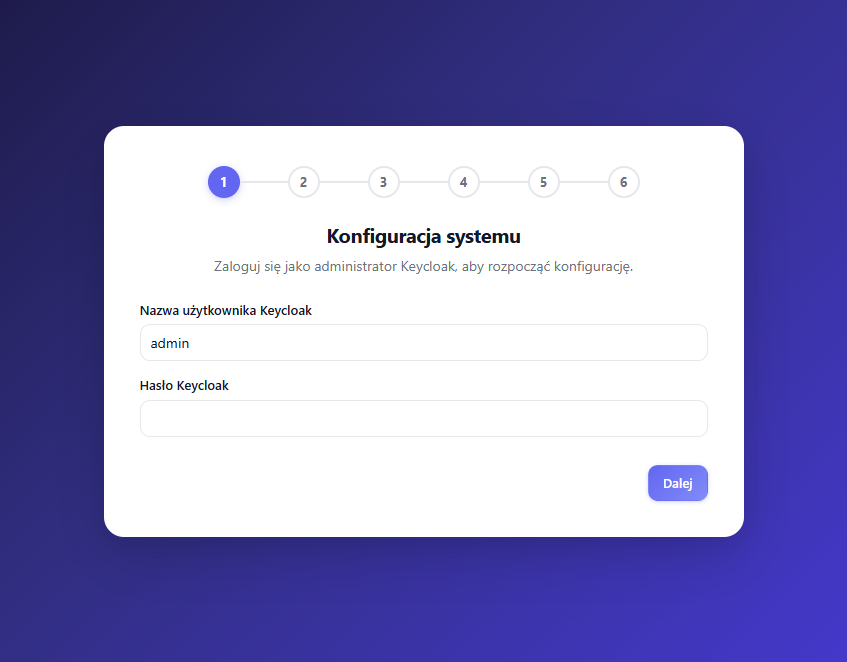
Enter the Keycloak admin credentials (default: admin / admin from docker-compose.yml). The wizard authenticates against the master realm and stores the credentials in a temporary session token (valid for 10 minutes), which is used to configure Keycloak in subsequent steps.
Step 2: Basic configuration
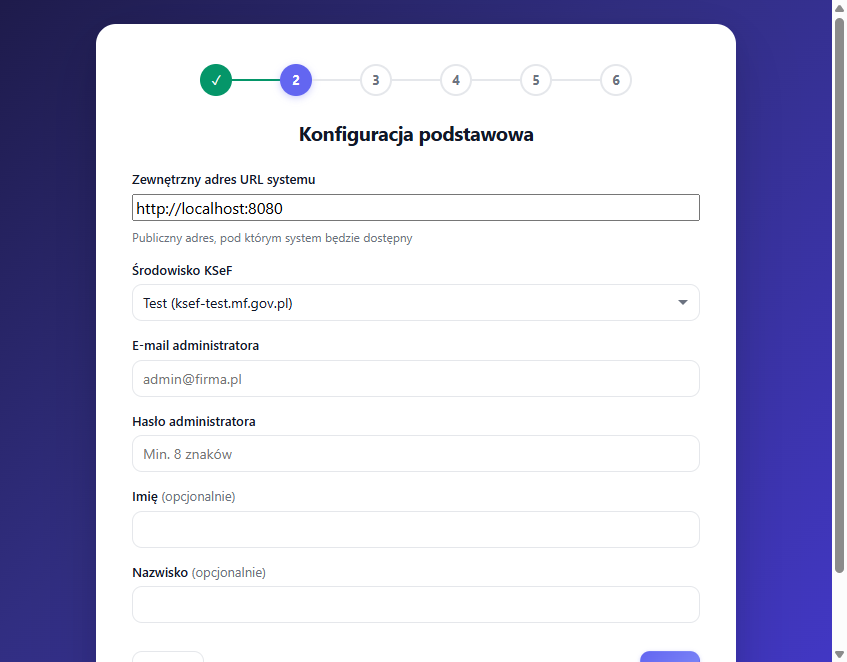
| Field | Description | Default |
|---|---|---|
| External URL | Public system address | Current browser address |
| KSeF environment | Test or Production | Test (ksef-test.mf.gov.pl) |
| Admin email | First user's email | (required) |
| Admin password | First user's password | (required, min. 8 characters) |
| First name / Last name | Optional user details | Admin |
Step 3: Authentication and email
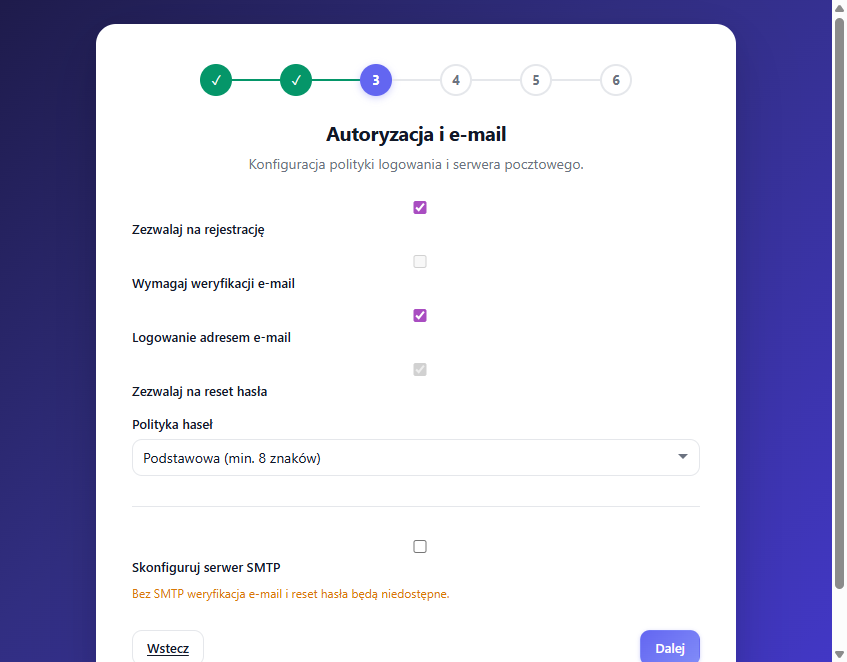
Login policy:
- User registration (default: ON)
- Email verification (default: OFF, requires SMTP)
- Email login (default: ON)
- Password reset (default: ON, requires SMTP)
Password policy:
- Basic: minimum 8 characters
- Strong: 12 characters, special characters, uppercase letters, digits
SMTP (optional):
If you enable email verification or password reset, you need SMTP:
| Provider | Host | Port | TLS |
|---|---|---|---|
| Gmail | smtp.gmail.com | 587 | StartTLS |
| Outlook/O365 | smtp.office365.com | 587 | StartTLS |
| Custom | (manual) | (manual) | (manual) |
Gmail requires an App Password (not a regular password). Generate one in Google account settings: Security > 2-Step Verification > App Passwords.
Step 4: Security
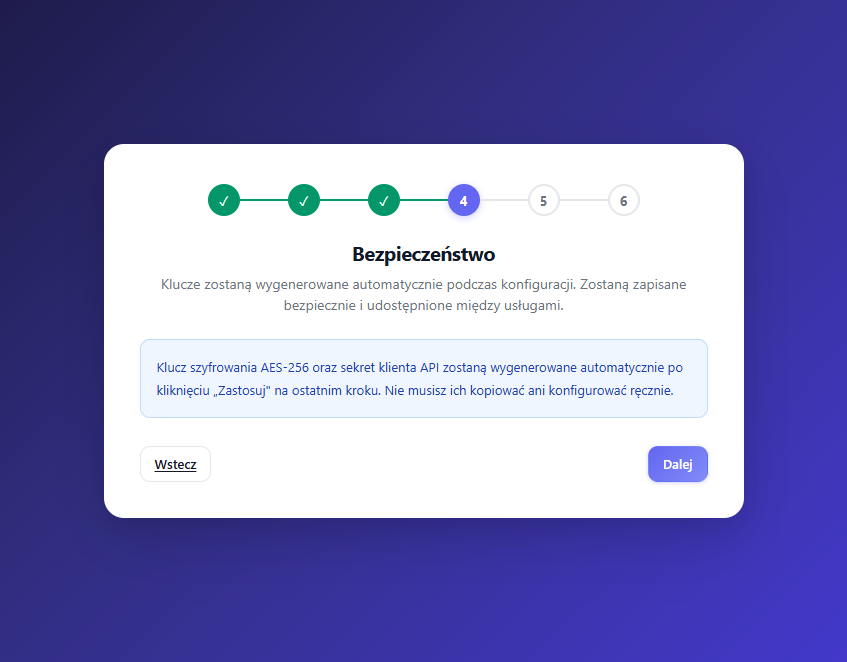
The wizard automatically generates:
- AES-256 encryption key for encrypting KSeF tokens in the database
- API client secret fetched from the Keycloak
openksef-apiclient
Data is securely stored in the database and shared between services automatically.
Step 5: Integrations (optional)
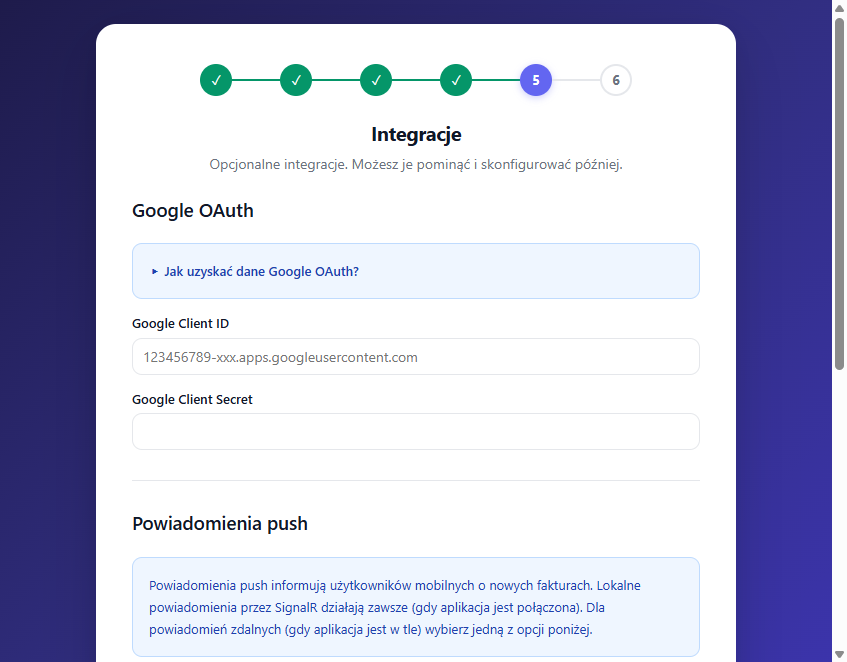
Google OAuth: If you want Google sign-in, create a Google Cloud OAuth 2.0 Client ID and enter the details. The redirect URI is filled in automatically.
Push notifications: Three modes:
- OpenKSeF Relay (default, recommended) -- Uses a relay server to deliver push via FCM/APNs. No Firebase configuration required. The relay URL (
https://push.open-ksef.pl) is filled in automatically. - Own Firebase project (advanced) -- Paste the Firebase service account JSON. Details in Push notifications.
- Local only (SignalR) -- No remote notifications. Users receive notifications only when the mobile app is actively connected to the server.
SignalR always works regardless of the selected mode. The mode only affects remote (background) delivery.
Step 6: Summary and apply
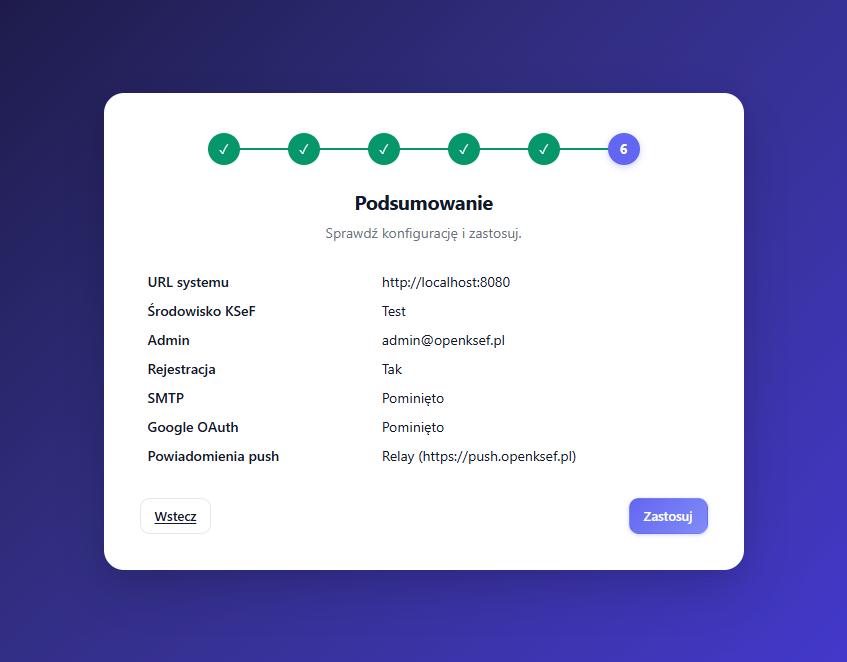
Review all settings and click "Apply". The wizard:
- Creates the
openksefrealm in Keycloak (if it doesn't exist) - Creates OAuth clients:
openksef-api,openksef-mobile,openksef-portal-web - Generates the encryption key
- Fetches the API client secret from Keycloak
- Enables token-exchange for the service account
- Updates redirect URIs with the external URL
- Configures the Keycloak realm (login policy, password policy, SMTP)
- Creates the admin account in Keycloak
- Configures the Google IdP (if provided)
- Saves the entire configuration to the database
- Redirects to the login page
Architecture
Configuration storage
Configuration is stored in the system_config table (key-value). The ISystemConfigService reads from this table with an in-memory cache, falling back to environment variables.
Priority: Setup wizard (database) > .env file > defaults in docker-compose.yml
This means that after completing the wizard, its settings take the highest priority. The .env file is optional and only overrides values that the wizard didn't set.
API endpoints
| Endpoint | Authorization | Purpose |
|---|---|---|
GET /api/system/setup-status | Anonymous | Returns {isInitialized: bool} |
POST /api/system/setup/authenticate | Anonymous | Validates KC admin credentials, returns token |
POST /api/system/setup/apply | Setup token (X-Setup-Token) | Performs full configuration |
All setup endpoints are blocked after initialization (return 403).
Portal routing
The portal checks /api/system/setup-status on every protected page load. If isInitialized is false, all routes redirect to /admin-setup.
Troubleshooting
| Problem | Solution |
|---|---|
| Wizard doesn't appear | Check if the system_config table is empty. Delete rows and restart the API. |
| Keycloak login doesn't work | Check if Keycloak is running (docker compose logs keycloak). Default credentials: admin/admin. |
| Apply returns 500 | Check API logs (docker compose logs api). Common cause: Keycloak is not ready yet. |
| SMTP email test fails | Verify SMTP credentials. Gmail requires an App Password. |
| Redirect loop after setup | Clear browser cache/cookies. The portal caches setup status for 60 seconds. |
| Want to run the wizard again | Delete all rows from the system_config table and restart the API container. |